

Find Your Shopify Admin URL
We need your store's Shopify Admin URL to locate your account and send a collaborator request.
How to find it:
- Log in to your Shopify Admin panel.
- Look at the address bar of your browser and copy the entire URL. It will look like this:
https://admin.shopify.com/store/your-store-name
Tip: Simply copy and paste the entire URL from your browser's address bar. Our tool in Step 3 will automatically extract and format your connection details.
Retrieve Your Collaborator Request Code
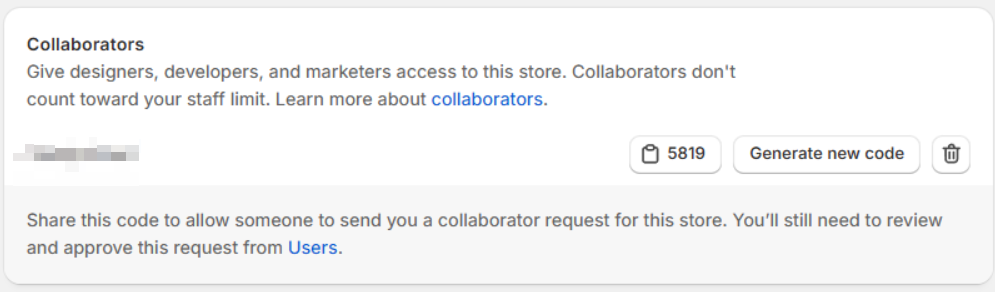
To secure your store, Shopify requires a 4-digit request code to authorize new collaborator connection requests.
How to find it:
- From your Shopify Admin, click Settings (the gear icon in the bottom-left corner).
- Select Users and permissions from the menu.
- Scroll down to the Collaborators section. You will find your 4-digit collaborator request code listed there.
Submit Your Details
Enter the details you located in Steps 1 and 2 below, then click to copy them to your clipboard to send to our team.
Approve the Access Request
Once you have emailed your connection details to us, we will submit our formal request to your Shopify admin and let you know it has been sent.
To complete the setup:
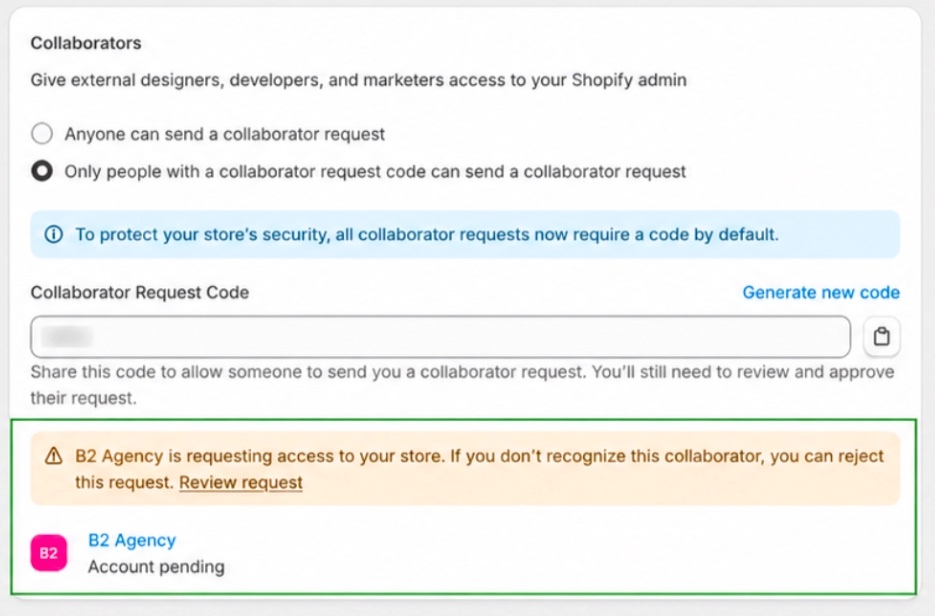
- You will receive an automated email from Shopify with the subject: "Collaborator request from B2 Agency".
- Alternatively, open your Shopify Admin, navigate to Settings > Users and permissions.
- Under the Collaborators section, click on the pending request from B2 Agency and select Accept request.
Need help getting connected?
If you have any questions or get stuck along the way, we are here to support you. You can schedule a quick walkthrough with our team.